Assigning roles and workflow tasks to a group
Introduction
Brief Connect supports assigning roles and workflow tasks to User Groups, enabling teams to collaborate on assignments without individual task management overhead. This feature addresses common workflow challenges by allowing any member of a group to action tasks on behalf of the group, while maintaining clear accountability and audit trails.
Benefits
Group assignment provides several key advantages:
| Benefit | Description |
|---|---|
| Flexibility | Any member or owner of a group can complete assigned tasks, eliminating delays when specific team members are unavailable |
| Reduced overhead | No need for manual reassignments or toggling workflows when team members are sick or on leave |
| Clear accountability | Activity logs clearly show which group member completed each task on behalf of the group |
| Seamless delegation | Proxies to group members can also complete group-assigned tasks |
| Team collaboration | Multiple team members can see and action tasks assigned to their group |
Use cases
Common scenarios where group assignment is valuable:
- Team-based roles: When a role should be fulfilled by any member of a team (e.g., "Reviewer", "Approver")
- Workload distribution: When you want multiple people to be able to action a task, but only one person needs to complete it
- Coverage: When you need to ensure tasks can be completed even if the primary assignee is unavailable
- Departmental assignments: When assigning work to a department or organisational unit rather than a specific individual
How to assign a group to a role
You can assign a User Group to a role during record creation or when updating role assignments on an existing record.
Before you begin
Ensure the following prerequisites are met:
- The role field must be configured to support group assignment (configured by a System Administrator)
- You have permission to edit role assignments on the record
- A User Group exists that you want to assign (groups are created by System Administrators)
Role Configuration
Not all roles support group assignment. If you don't see groups in your search results for a particular role, that role may not be configured to support group assignment. Contact your System Administrator to enable group assignment for specific roles.
Steps
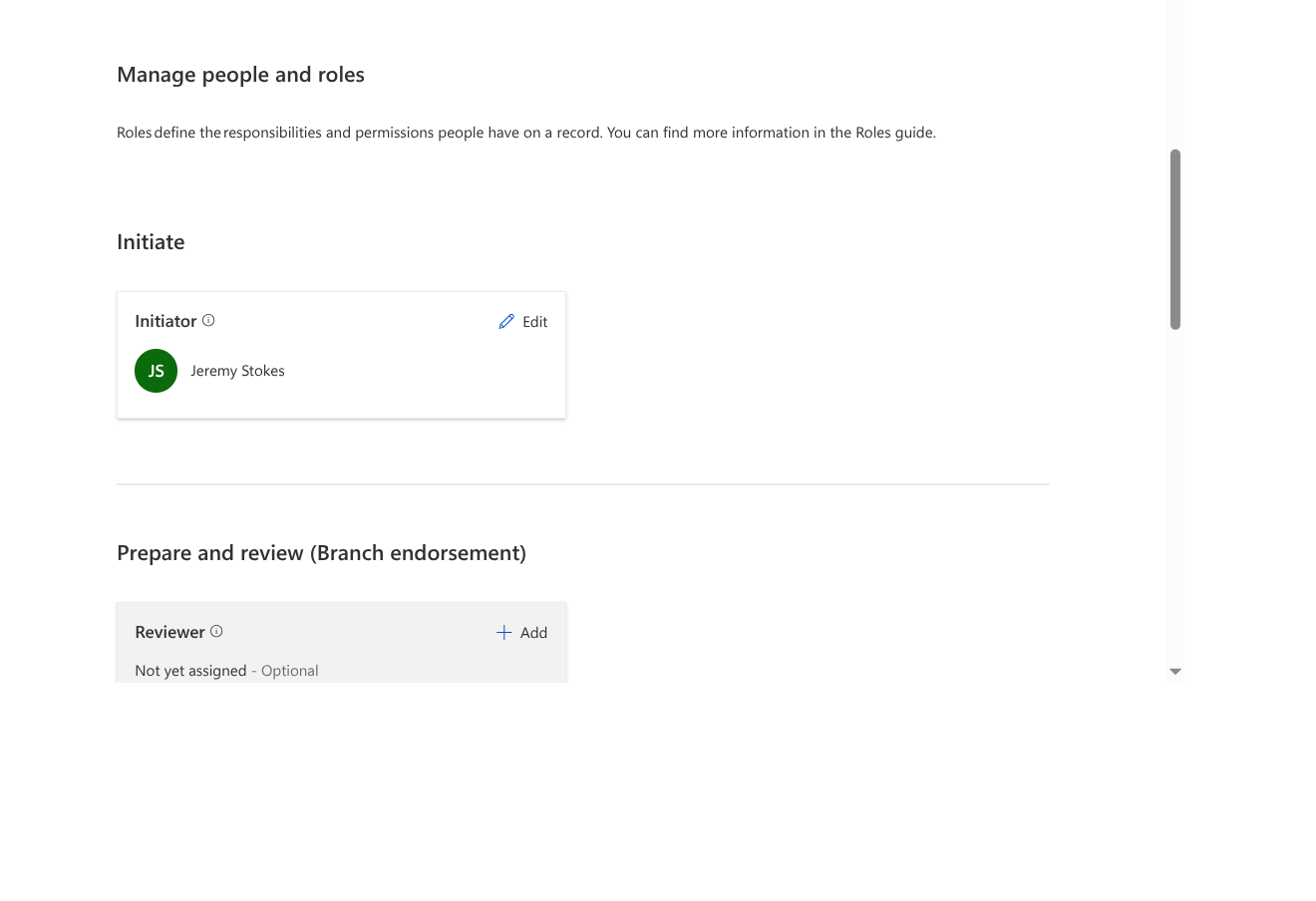
- Navigate to the People & Roles tab during record creation or when editing an existing record
-
Locate the role field you want to assign and click in the field to open the People Picker search interface
-
Search for the group by typing the group name in the search field
 - The search uses a "begins with" match - type the first few characters of the group name to find it
- For example, typing "Legal" will find "Legal Review Team", but typing "Review" will not
- Groups are indicated by a distinct group icon (showing initials with a group indicator)
- The group's description is shown below the name to help you identify the correct group
- The search uses a "begins with" match - type the first few characters of the group name to find it
- For example, typing "Legal" will find "Legal Review Team", but typing "Review" will not
- Groups are indicated by a distinct group icon (showing initials with a group indicator)
- The group's description is shown below the name to help you identify the correct group
- Preview group membership (optional) - Before selecting the group, you can view who the members are
-
Select the group from the search results to assign it to the role
-
Save the record to confirm the role assignment
Expected outcome
After completing these steps:
- The group name appears in the role field
- All members and owners of the group inherit the permissions associated with that role
- The record appears in "My Records" for all group members
- Group members can now perform actions permitted by the role's permission set
Visual indicators
When working with group assignments:
- Groups display with a distinct group icon (different from the individual user icon)
- The "Assigned to" column on the Dashboard shows the group name
- You can expand group details to see current membership at any time
How to complete tasks assigned to a group
When a workflow task is assigned to a User Group, any member or owner of that group can complete the task.
Before you begin
- You must be a member or owner of the group the task is assigned to
- Alternatively, you must be a proxy for a member of the group
How task visibility works
When a task is assigned to a group:
| Aspect | Behavior |
|---|---|
| Dashboard | Task appears under "My Tasks" for all group members and owners |
| Notifications | All group members receive task assignment notifications |
| Activity Timeline | Shows the task is assigned to a group, displaying the group name |
| Access | All members and owners can see and access the task |
Steps
-
Navigate to the record containing the task you want to complete
-
Open the I Want To menu
- Select the task from the available options
- The task appears as if it was assigned directly to you
-
Complete the task as you normally would
-
Submit your action to complete the task
Expected outcome
After completing a group-assigned task:
- The task is marked as complete for the entire group
- The task is removed from "My Tasks" for all other group members
- The activity log records that you completed the task on behalf of the group
- The workflow progresses to the next state
Activity log and audit trail
When a task is completed by a group member, Brief Connect maintains a clear audit trail:
| Location | What is recorded |
|---|---|
| Activity Log | "[User Name] completed task on behalf of [Group Name]" |
| Timeline | Displays the group member's name with indication they acted on behalf of the group |
| PDF Pack/Endorsement Page | Shows the group member's name and indicates they completed the task on behalf of the group |
This ensures clear accountability while maintaining the flexibility of group-based task assignment.
Proxy considerations for groups
Group assignment integrates seamlessly with Brief Connect's proxy functionality, enabling uninterrupted workflow even when group members are unavailable.
How proxies work with groups
Any user who is set up as a proxy to a member of a group can complete tasks assigned to that group:
- Automatic access: Proxies to group members can see and complete group-assigned tasks just as if they were members of the group themselves
- Seamless delegation: This enables seamless and interruption-free task delegation without requiring manual reassignments
- Full audit trail: The activity log clearly shows the task was completed by the proxy on behalf of the group
Example scenario
Consider this scenario:
"John Smith" is set up as a proxy for "Jane Doe", and "Jane Doe" is a member of the "Review Team" group.
What happens:
- Tasks assigned to the "Review Team" group appear in John's "My Tasks" dashboard
- John can complete these tasks using the I Want To menu
- The activity log records: "Task completed by John Smith (proxy for Jane Doe) on behalf of Review Team"
This ensures that group assignments remain actionable even when group members delegate their responsibilities to proxies.
How groups are managed
User Groups are managed by System Administrators and Group Owners through the Brief Connect interface.
Accessing group management
To view or manage User Groups:
- Navigate to the User Groups page (
{Brief Connect instance URL}/#/usergroups) - System Administrators can access this via the Admin Panel
- Group Owners can access to manage membership of groups they own
Administrator Access
For detailed instructions on creating and configuring groups, see the Admin Guide: Managing User Groups.
Group ownership model
User Groups use an ownership model that provides flexible management:
| Role | Capabilities |
|---|---|
| Group Owner | Can add/remove members from their groups, transfer ownership to others |
| Group Member | Can complete tasks assigned to the group, view group membership |
Key points about ownership:
- Each group must have at least one owner at all times
- Owners are automatically considered members (they don't need to be added separately)
- Multiple users can be owners of the same group
Self-Managing Groups
For groups that should be 'self-managing', make all members owners of the group. This allows any member to manage the group's membership.
Quick reference: Permissions
| Action | System Admin | Group Owner | Group Member |
|---|---|---|---|
| Create new groups | Yes | No | No |
| Disable groups | Yes | No | No |
| Edit group name/description | Yes | No | No |
| Add/remove members | Yes | Own groups only | No |
| Transfer ownership | Yes | Own groups only | No |
| Complete group tasks | Yes | Yes | Yes |
| View group membership | Yes | Yes | Yes |
Limitations
The following limitations apply to User Groups in the current version:
| Limitation | Details |
|---|---|
| Maximum group size | 15 users total (including both owners and members) |
| Groups per role field | Only one group can be assigned to a role field at a time |
| Nested groups | Groups cannot contain other groups |
| Entra ID synchronisation | User Groups are managed manually within Brief Connect (no Entra ID synchronisation) |
| Group deletion | Groups can only be disabled, not permanently deleted |
| Multi-select role fields | Groups can only be enabled on single-select Role fields, not Role Multi Select fields |
FAQs
Integration with other systems
Q: Are User Groups integrated with Entra ID?
A: User Groups in Brief Connect are separate from Entra ID groups. They are managed within Brief Connect and stored in Brief Connect's database. However, when a group is assigned to a role, Brief Connect creates and synchronises a corresponding SharePoint group (including membership) in the SharePoint site, and that SharePoint group is granted permissions to documents.
Role configuration
Q: How do I configure which roles support group assignment?
A: Role configuration must be done by a System Administrator in the Admin Panel. The "Groups Enabled" checkbox must be selected on the role field configuration. See the Admin Guide for details.
Q: Can I assign multiple groups to a single role?
A: No, only a single group can be assigned to a role at a time. If you need to assign multiple groups, you would need to create a parent group that includes all the members you want to assign.
Group membership
Q: What happens if I try to add a user who doesn't have Brief Connect access to a group?
A: Brief Connect validates that all users have active accounts. If validation fails, you will receive an error message: "Cannot save group. The following users are invalid or do not have activated Entra ID accounts: [User1], [User2]"
Q: What is the maximum number of users in a group?
A: Groups are limited to 15 total users (owners plus members combined). Attempting to exceed this limit displays: "Cannot add user. Groups are limited to 15 total members and owners."
Notifications
Q: How do notifications work when a group is assigned to a role or task?
A: Notifications work similarly to individual assignments:
- Role assignment: Notifications reflect that the group was assigned the role
- Task assignment: All members of the group receive task assignment notifications
- Task completion: Standard task completion notification rules apply
Group membership changes
Q: What happens to active tasks if I remove a member from a group?
A: Tasks already assigned to the group remain assigned. The removed member will no longer see those tasks in their dashboard, but other group members can still complete them. Permissions are evaluated dynamically based on current group membership.
Q: Can I see who is a member of a group before assigning it to a role?
A: Yes, when searching for groups in the PeoplePicker, you can view group membership before assigning the group to a role. This helps ensure you're assigning to the correct group.
Related documentation
- Admin Guide: Managing User Groups - Creating and configuring User Groups
- Understanding User Permission Levels - How permissions work in Brief Connect
- The Proxy Role - Understanding proxy functionality
- Proxy Management - Managing proxy assignments