Managing groups for role assignment and workflow tasks
Configuration Scope: Environment-Specific
User Groups are environment-specific and must be configured separately in each environment (dev, test, prod). Groups are NOT included in configuration exports and must be recreated manually in each environment.
What are User Groups?
User Groups in Brief Connect are collections of users that can be assigned to roles and workflow tasks, enabling team-based collaboration and flexible task management. Unlike Azure Entra ID groups, User Groups are managed within Brief Connect and provide business-level control over group membership without requiring IT/Entra administration.
What problems do User Groups solve?
| Challenge | How User Groups help |
|---|---|
| Availability issues | When tasks are assigned to individuals, work can stall if that person is unavailable. Group assignment ensures any team member can action the work |
| Manual reassignments | Without groups, administrators must manually reassign tasks when team members are unavailable. Groups eliminate this overhead |
| Workflow toggling | Some organisations resort to toggling workflows to properly assign tasks. Groups provide a cleaner solution |
| Lack of visibility | It's often unclear who can actually action work. Groups make team capabilities visible |
| Business control | User Groups give business administrators (not just IT) control over team membership |
Key concepts
- User Groups are managed within Brief Connect, not in Entra ID
- Owners can manage group membership; Members can complete group-assigned tasks
- Groups are limited to 15 total users (owners + members combined)
- When assigned to a role, all group members inherit the associated permissions
- Brief Connect automatically syncs groups with SharePoint for document permissions
User perspective
For a detailed explanation of how groups work from a user perspective, including how to assign groups to roles and tasks, see the User Guide: Assigning roles and workflow tasks to a group.
How to create a new User Group
Only System Administrators can create new User Groups.
Before you begin
- You must have System Administrator privileges in Brief Connect
- Identify the users who will be owners and members of the group
- Plan a unique, descriptive name for the group
Steps
- Navigate to User Groups management
- Go to the User Groups page:
{Brief Connect instance URL}/#/usergroups -
Or access via the Admin Panel
-
Click the New User Group button
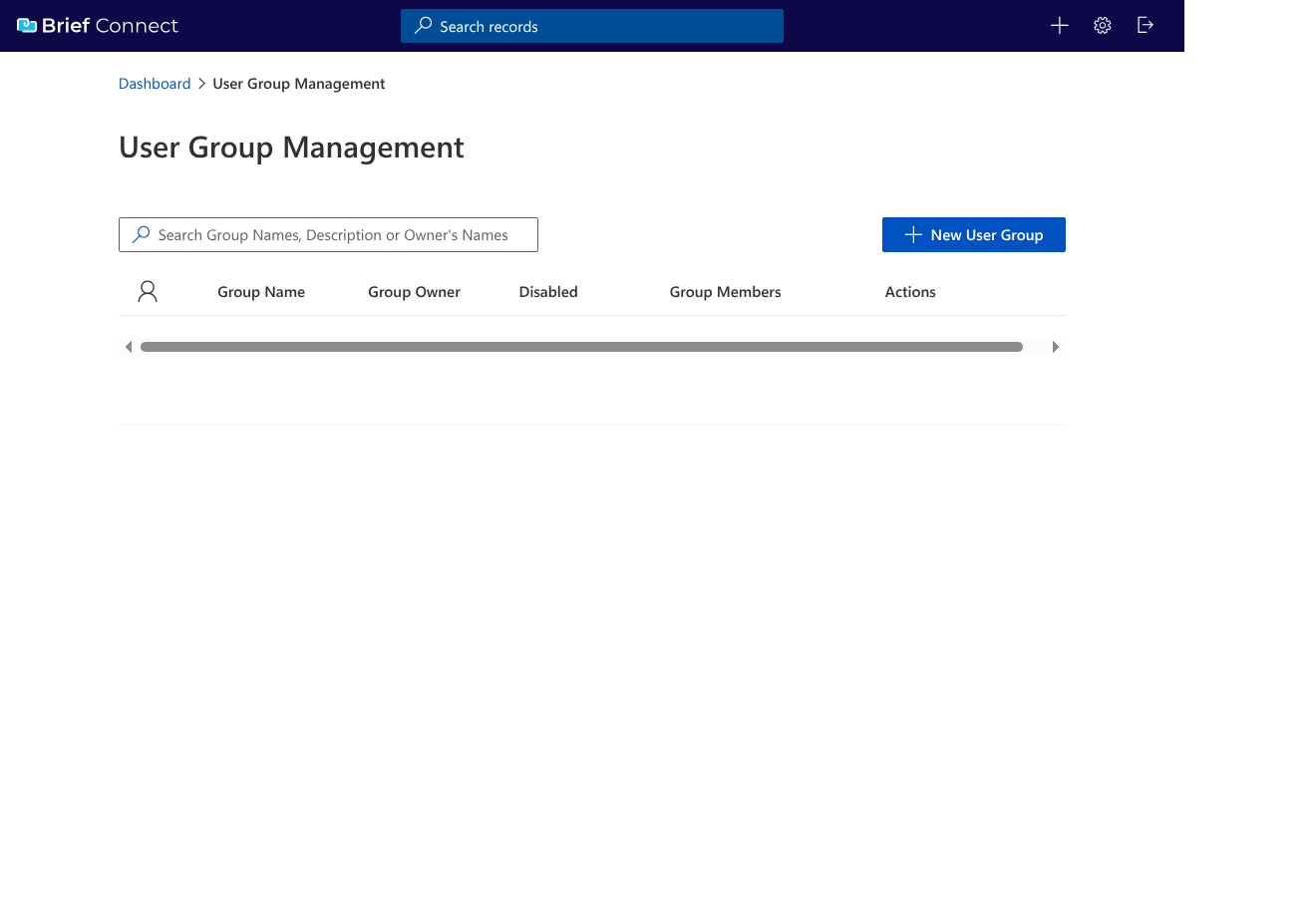
- Enter group details
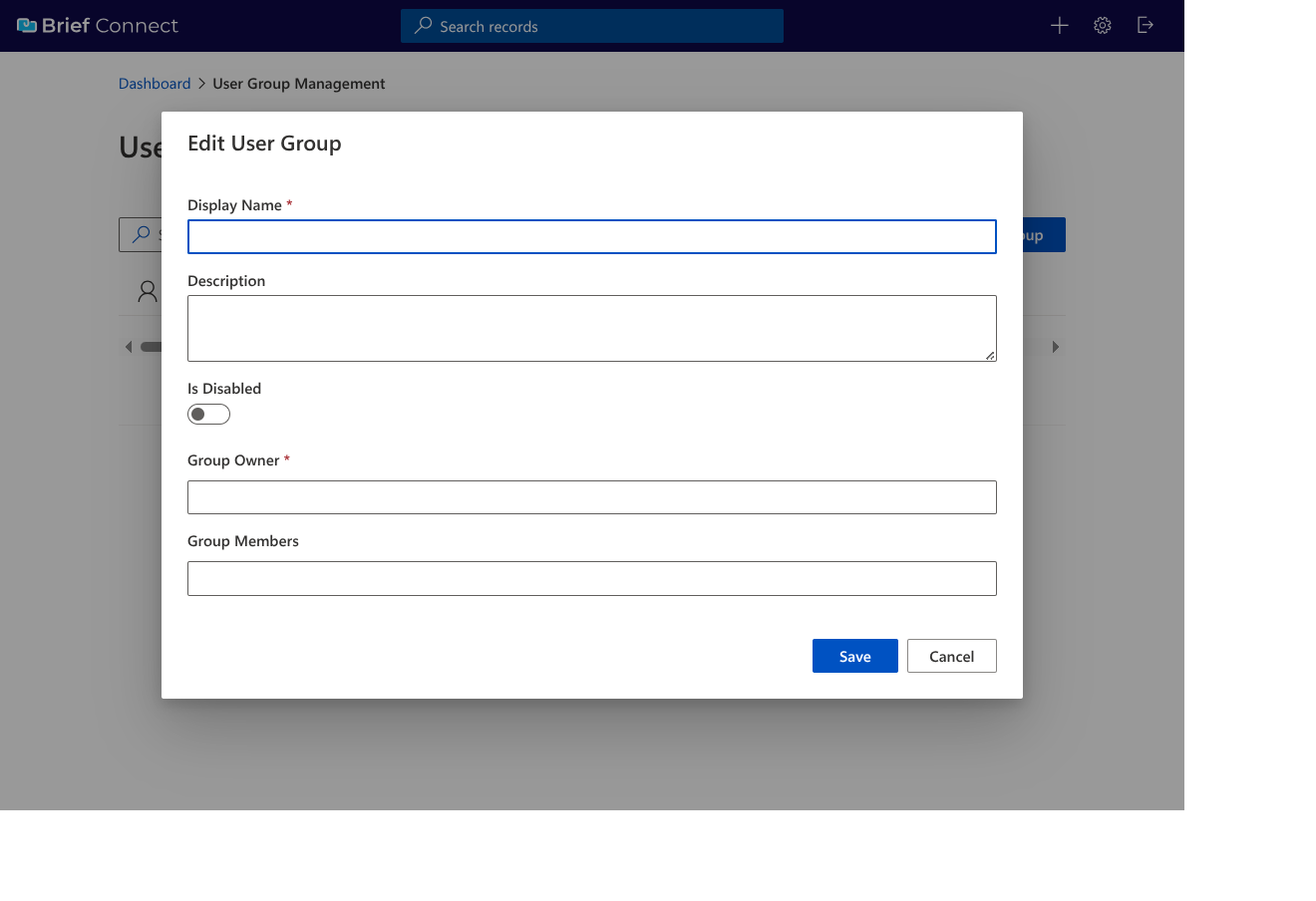
| Field | Required | Description |
|---|---|---|
| Display Name | Yes | A unique name for the group. Follow SharePoint naming rules (avoid special characters) |
| Description | Yes | Explains the group's purpose to help users understand when to assign tasks to it |
| Disabled | No | Toggle to disable the group (disabled groups cannot be assigned to new roles) |
| Group Owner(s) | Yes | At least one owner is required. Owners can manage group membership |
| Group Member(s) | No | Additional members beyond owners (owners are automatically members) |
- Add at least one Group Owner
- Search for and select one or more users to be group owners
- Owners can manage the group's membership
-
Owners are automatically considered members (no need to add them as members separately)
-
Add Group Members (optional)
- Search for and select additional users
-
All users must have active Brief Connect accounts
-
Click Save to create the group
Expected outcome
- The new group appears in the User Groups list
- The group can now be assigned to role fields that have "Groups Enabled" checked
- Group owners can manage membership going forward
Validation rules
Brief Connect validates the following when saving a group:
| Validation | Error message |
|---|---|
| Duplicate name | "A group with this name already exists" |
| No owner | "Cannot remove the last owner. Groups must have at least one owner." |
| Too many users | "Cannot add user. Groups are limited to 15 total members and owners." |
| Invalid user | "Cannot save group. The following users are invalid or do not have activated Entra ID accounts: [User1], [User2]" |
How to edit a User Group
Both System Administrators and Group Owners can edit groups, but with different permissions.
Before you begin
- You must be a System Administrator OR an Owner of the group you want to edit
Steps
-
Navigate to the User Groups page (
{Brief Connect instance URL}/#/usergroups) -
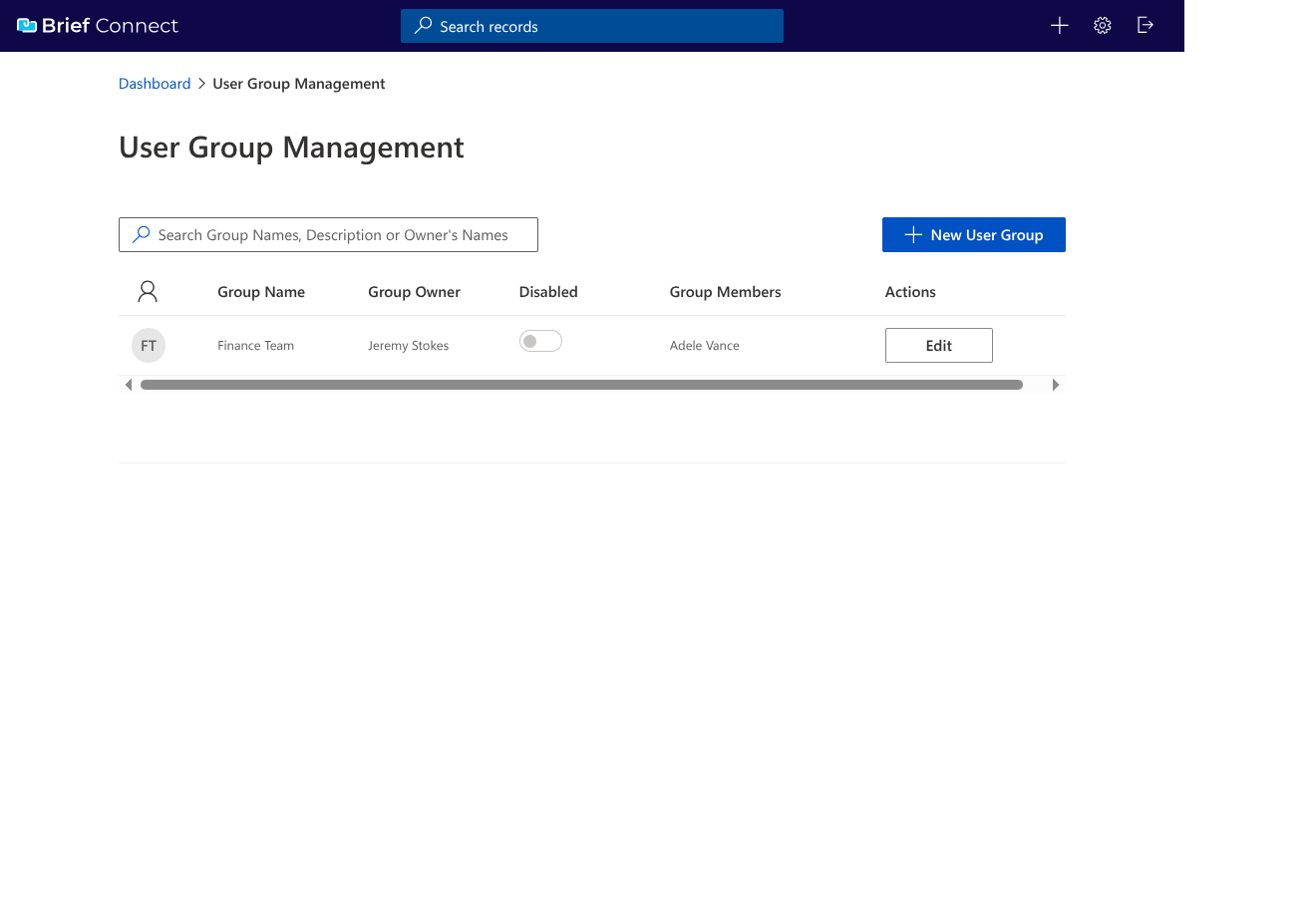
Find the group you want to edit
-
Use the search bar to filter the list
-
Click the Edit button next to the group
- Make your changes
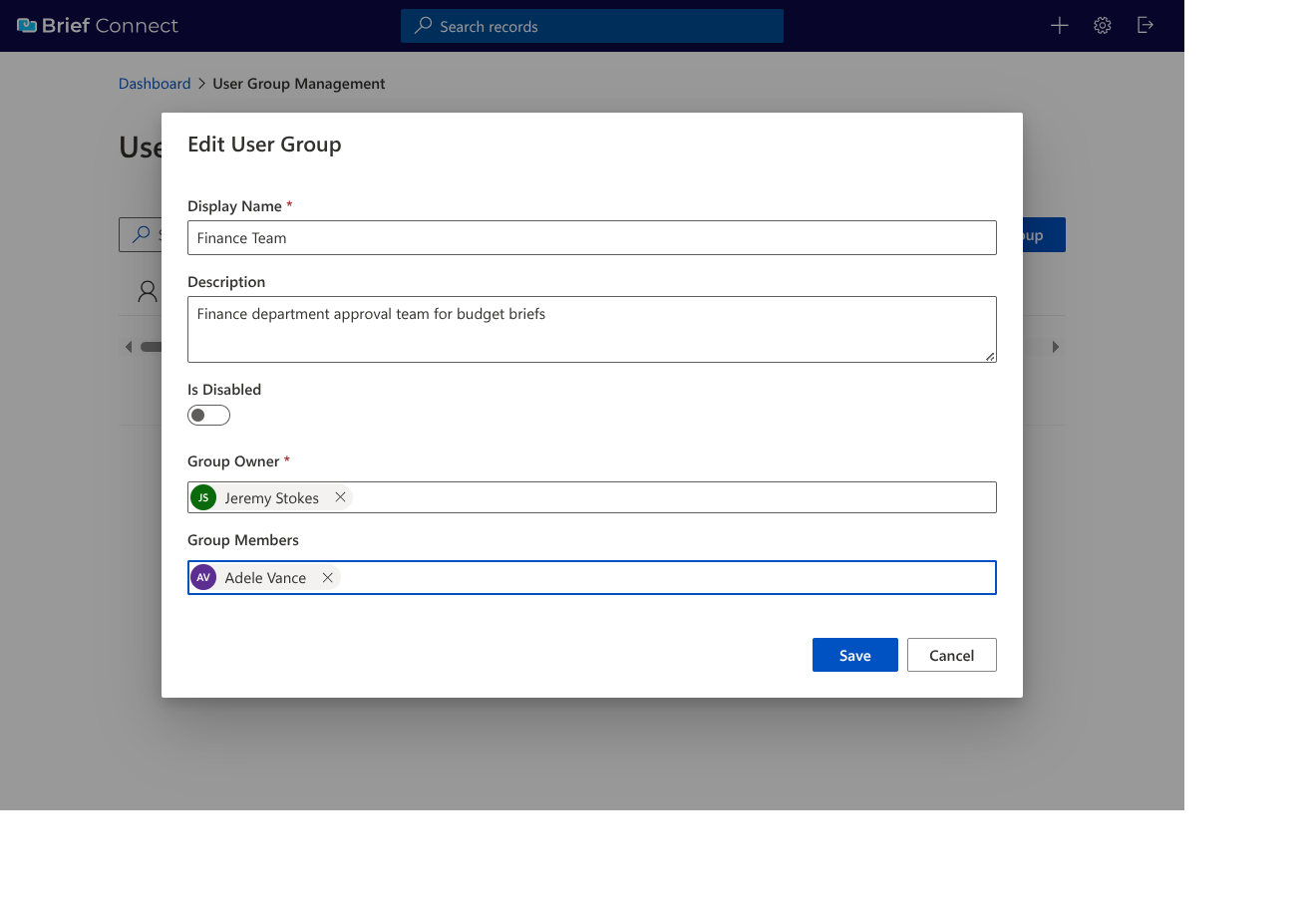
| What you can edit | System Admin | Group Owner |
|---|---|---|
| Display Name | Yes | No |
| Description | Yes | No |
| Enabled/Disabled status | Yes | No |
| Add/remove owners | Yes | Yes |
| Add/remove members | Yes | Yes |
- Click Save to apply changes
How to enable group selection on a role field
For users to assign groups to a role, the role field must be configured with "Groups Enabled".
Before you begin
- You must have System Administrator privileges
- The field must be a Role type (not Role Multi Select)
Role Multi Select
Group selection can only be enabled for single-select Role field types. Role Multi Select fields do not support group assignment.
Steps
-
Navigate to the Admin Panel and open the Record Type configuration
-
Locate the role field you want to enable for group selection
-
Edit the field configuration
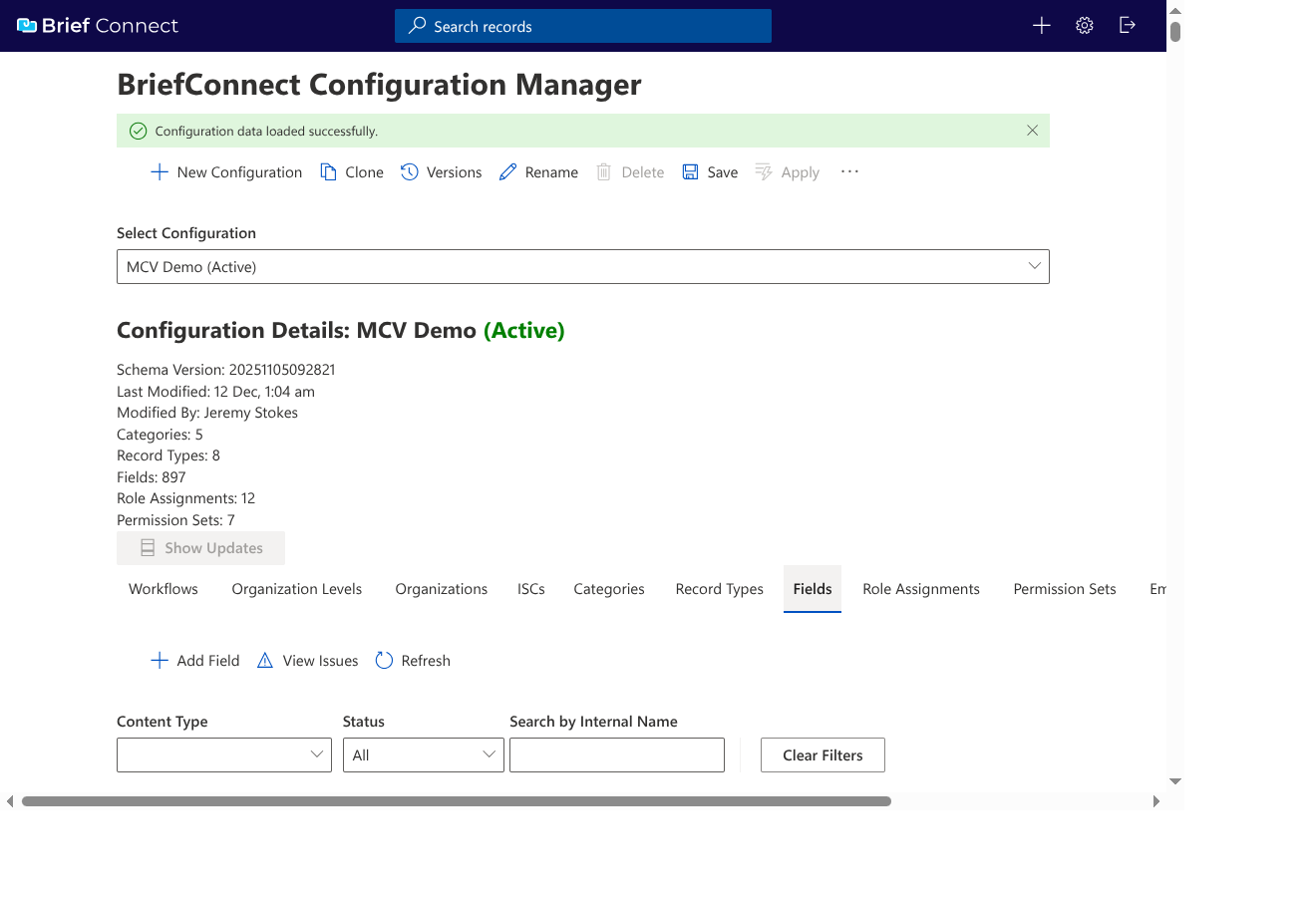
- Check the "Groups Enabled" checkbox
- Look for the "Groups Enabled" checkbox in the field properties
-
This setting is only available for Role type fields (not Role Multi Select)
-
Save the configuration
How permissions work with groups
When a User Group is assigned to a role, all members and owners of that group inherit the same access permissions that would have been granted to a single user assigned the same role.
Permission inheritance
| Aspect | Behavior |
|---|---|
| Role-based access | All group members receive the same record access permissions as if individually assigned |
| Permission sets | Groups inherit permissions based on the permission sets associated with the role assignment |
| Record access | Group members can view, edit, or perform actions based on the permissions granted to the role |
| Dynamic evaluation | Permissions are evaluated dynamically based on current group membership |
Example: If the "Approvers" role is assigned to "Finance Team" group, and there is a RoleAssignment granting the Approvers role view access:
- When a user is added to "Finance Team", they immediately receive view access
- When a user is removed from "Finance Team", they immediately lose that access
Related documentation
SharePoint permissions and group sync
Brief Connect handles SharePoint permissions differently for groups compared to individual user assignments.
How it works
| Assignment type | SharePoint behavior |
|---|---|
| Individual user | Permissions are propagated directly to the individual user |
| User Group | Brief Connect creates a corresponding SharePoint group and syncs membership |
SharePoint group synchronisation
When a User Group is assigned to a role:
- Automatic creation: Brief Connect creates a corresponding SharePoint group in the SharePoint site
- Membership synchronisation: The SharePoint group's membership is synchronised with the Brief Connect User Group
- Permission granting: Permissions for SharePoint documents are granted to the SharePoint group (not individual users)
- Automatic updates: When group membership changes in Brief Connect, the SharePoint group is automatically updated
Benefits of this approach
- Centralised management: Manage membership in Brief Connect; SharePoint stays in sync
- Performance: SharePoint's native group expansion is more efficient than individual permissions
- Consistency: All group members receive the same permissions automatically
- Automatic updates: No manual SharePoint permission management required
Important considerations
- SharePoint groups are created automatically when a User Group is first assigned to a role
- Group synchronisation happens automatically - no manual intervention needed
- If you change a group's role assignment, SharePoint permissions are automatically updated
- Groups can only be disabled, not deleted (to prevent orphaned SharePoint groups)
Quick reference
Permissions by role
| Action | System Admin | Group Owner | Group Member |
|---|---|---|---|
| Create new groups | Yes | No | No |
| Disable/enable groups | Yes | No | No |
| Delete groups | No* | No | No |
| Edit group name | Yes | No | No |
| Edit group description | Yes | No | No |
| Add/remove owners | Yes | Own groups | No |
| Add/remove members | Yes | Own groups | No |
| View group membership | Yes | Yes | Yes |
| Complete group tasks | Yes | Yes | Yes |
| Assign group to roles | Yes | Yes | Yes |
*Groups cannot be deleted within Brief Connect, only disabled. This prevents issues that would arise from having tasks/roles active for a group that is then deleted.
Limitations
| Limitation | Value/Details |
|---|---|
| Maximum group size | 15 users (owners + members combined) |
| Groups per role field | 1 (single group only) |
| Nested groups | Not supported |
| Azure AD sync | Not supported (manual management only) |
| Group deletion | Not supported (disable only) |
| Role Multi Select fields | Groups not supported |
Search behaviour
When users search for groups in the People Picker:
| Behaviour | Details |
|---|---|
| Search type | Begins with match (not contains) |
| Example | Typing "Legal" finds "Legal Review Team", but typing "Review" will not |
| Case sensitivity | Search is case-insensitive |
| Displayed info | Group name and description are shown in results |
Naming groups for discoverability
When naming groups, consider that users must type the beginning of the group name to find it. Choose clear, descriptive prefixes that users will naturally search for (e.g., "Finance Team" rather than "Team - Finance").
Error messages reference
| Scenario | Error message |
|---|---|
| Duplicate group name | "A group with this name already exists" |
| Removing last owner | "Cannot remove the last owner. Groups must have at least one owner." |
| Exceeding 15 users | "Cannot add user. Groups are limited to 15 total members and owners." |
| Invalid user | "Cannot save group. The following users are invalid or do not have activated Entra ID accounts: [User1], [User2]" |
Troubleshooting
Groups not appearing in role assignment search
Possible causes:
- The role field does not have "Groups Enabled" checked
- The group is disabled
- You're looking at a Role Multi Select field (groups only work with single-select Role fields)
Solution: Check the field configuration in the Admin Panel and ensure "Groups Enabled" is checked for a Role (not Role Multi Select) field.
User cannot complete a group-assigned task
Possible causes:
- User is not a member or owner of the group
- User is not a proxy for a group member
- User was recently removed from the group
Solution: Verify the user's group membership on the User Groups page. If they were recently removed, they will no longer see the task.
SharePoint permissions not syncing
Possible causes:
- SharePoint site connectivity issues
- Permission propagation delay
Solution: SharePoint sync typically happens within a few minutes. If permissions are still not correct after 15 minutes, contact your administrator to check the Brief Connect logs.
Related documentation
- User Guide: Assigning roles and workflow tasks to a group - End-user guide for working with groups
- Understanding User Permission Levels - How permissions work in Brief Connect
- Role Assignments - Configuring role-based permissions
- Managing Proxies - How proxy functionality works with groups